Structured Query Language (SQL)
SQL Schema Creation and Insertion
Basic Data Type
SQL provides a variety of built-in data types to store different kinds of values. Each data type has its own characteristics and constraints. The most commonly used types include:
char(n): A fixed-length character string with a specified length
n. If the stored string is shorter thann, extra spaces are appended to fill the length. Full form:character(n).varchar(n): A variable-length character string with a maximum length
n. Only the actual string is stored, without extra spaces. Full form:character varying(n).int / integer: Stores integer numbers. The exact range is machine-dependent.
smallint: Stores smaller integer numbers, a subset of
int.numeric(p,d): A fixed-point number with total precision
p(number of digits) and scaled(number of digits to the right of the decimal point). Example:numeric(3,1)allows storing 44.5 exactly but not 444.5 or 0.32.real: Single-precision floating-point number with machine-dependent precision.
double precision: Double-precision floating-point number with higher precision than
real.float(n): Floating-point number with at least
ndigits of precision.nvarchar(n): Variable-length Unicode string supporting multilingual characters.
Null values:
All SQL data types can include the special NULL value, which represents missing or unknown data. Null values indicate that a value may exist but is currently unknown, or that it may not exist at all. Certain columns can be restricted to disallow NULL.
char(n)always stores fixed-length strings. Shorter strings are padded with spaces to reach the specified length.varchar(n)stores variable-length strings. Only the actual string is stored; no extra spaces are added.When comparing two
charvalues of different lengths, SQL automatically pads the shorter string with spaces for comparison.Comparing
charandvarcharmay behave differently depending on the database system. Some systems pad thevarchar, while others do not.To avoid unexpected comparison results, it is generally recommended to use
varcharinstead ofchar.nvarchar(or UTF-8varchar) should be used to store multilingual or Unicode data.
intandsmallintstore integer values.smallintuses less storage but has a smaller range.numeric(p,d)stores fixed-point numbers with exact precision. Values exceeding the specified precision or scale are not allowed.real,double precision, andfloat(n)store approximate floating-point numbers. Floating-point operations may introduce rounding errors.When using numeric types, always choose the type that fits the required precision and storage constraints.
NULLindicates missing, unknown, or inapplicable data.NULLis distinct from zero, empty string, or any other default value.Columns can be restricted using
NOT NULLto ensure that data is always provided.Operations involving
NULLgenerally result inNULL(e.g., arithmetic, comparisons), except when explicitly handled.
Prefer
varcharovercharfor most text fields to avoid padding issues.Use
nvarcharwhen storing multilingual data.Use
numeric(p,d)for financial or fixed-point calculations to maintain exact precision.Always consider
NULLconstraints and handle missing data carefully.
Consider two attributes:
Attribute
Aof typechar(10)Attribute
Bof typevarchar(10)
Example Values:
Storing "Avi" in
A→ "Avi " (7 trailing spaces added to make length 10)Storing "Avi" in
B→ "Avi" (no extra spaces)Storing "Samantha" in
A→ "Samantha " (2 trailing spaces)Storing "Samantha" in
B→ "Samantha" (length exactly stored)
Observations:
Comparison of two
charvalues automatically pads the shorter string with spaces. For example, "Avi " = "Avi " → TRUEComparison of
charwithvarcharmay fail in some systems: "Avi " = "Avi" → may return FALSE
Integer Examples:
intcan store: 0, 10, -500, 100000smallintcan store: 0, 10, -32000, 32000 (smaller range than int)
Fixed-Point Numeric Examples:
numeric(5,2)→ 5 total digits, 2 after decimal123.45 → valid
1.23 → valid (stored as 1.23)
1234.56 → invalid (exceeds 5 digits)
numeric(3,1)→ 3 digits, 1 decimal place44.5 → valid
444.5 → invalid
0.32 → invalid (requires 1 digit after decimal)
Floating-Point Examples:
realorfloat(7)Can store 3.141592, 2.71828, -0.00001
Approximate values; may have rounding errors
double precisionHigher precision than real
Suitable for scientific calculations
Consider an attribute MiddleName of type varchar(20):
Person1 → "Ravi"
Person2 → NULL (middle name unknown)
Person3 → "" (empty string)
Observations:
NULL is different from an empty string ""
Arithmetic or string operations with NULL generally result in NULL
Columns can be constrained with
NOT NULLto prevent missing values
Attribute Language of type nvarchar(20):
"English" → stored as usual
"Español" → stored correctly with ñ
Observations:
nvarcharallows multilingual characters in a single columnUTF-8
varcharmay also support Unicode, depending on the database
Basic Schema Definition
An SQL relation (table) is defined using the CREATE TABLE command.
A relation consists of:
A name (relation name)
A set of attributes (columns), each with a name and domain (data type)
Optional integrity constraints (primary key, foreign key, NOT NULL, unique, etc.)
General Syntax:
CREATE TABLE relation_name (
    attribute1 datatype [constraint],
    attribute2 datatype [constraint],
    ...,
    [table-level constraints]
);
Notes:
Semicolon at the end of a SQL statement is optional in many implementations.
Newly created tables are initially empty; data is inserted later.
Integrity constraints maintain correctness of data in the database.
Primary Key: Attributes that uniquely identify each tuple. Cannot be NULL and must be unique.
Foreign Key: Ensures that attribute values in one table correspond to values of primary key attributes in another table.
Not Null: Prevents NULL values in a column.
Composite Keys: Primary or foreign keys can consist of multiple attributes to uniquely identify a tuple.
The department table stores information about university departments.
dept_name: Name of the department (primary key). Maximum 20 characters.building: Building of the department. Maximum 15 characters.budget: Budget of the department. Numeric(12,2).
CREATE TABLE department (
    dept_name VARCHAR(20),
    building VARCHAR(15),
    budget NUMERIC(12,2),
    PRIMARY KEY (dept_name)
);
Explanation:
Primary key ensures unique department names.
Building and budget are optional unless specified NOT NULL.
The course table stores courses offered by departments.
course_id: Unique course identifier (primary key), max 7 chars.title: Course title, max 50 chars.dept_name: Foreign key referencingdepartment.dept_name.credits: Numeric(2,0) indicating course credits.
CREATE TABLE course (
    course_id VARCHAR(7),
    title VARCHAR(50),
    dept_name VARCHAR(20),
    credits NUMERIC(2,0),
    PRIMARY KEY (course_id),
    FOREIGN KEY (dept_name) REFERENCES department(dept_name)
);
Explanation:
Ensures each course references a valid department.
Primary key guarantees unique course IDs.
Stores instructor information.
ID: Instructor ID (primary key), max 5 chars.name: Instructor name, max 20 chars, NOT NULL.dept_name: Foreign key referencing department.salary: Numeric(8,2) salary.
CREATE TABLE instructor (
    ID VARCHAR(5),
    name VARCHAR(20) NOT NULL,
    dept_name VARCHAR(20),
    salary NUMERIC(8,2),
    PRIMARY KEY (ID),
    FOREIGN KEY (dept_name) REFERENCES department(dept_name)
);
Explanation:
NOT NULL ensures every instructor has a name.
Foreign key maintains department validity.
Stores class sections.
Composite primary key:
course_id, sec_id, semester, year.building,room_number,time_slot_idstore section location and schedule.
CREATE TABLE section (
    course_id VARCHAR(8),
    sec_id VARCHAR(8),
    semester VARCHAR(6),
    year NUMERIC(4,0),
    building VARCHAR(15),
    room_number VARCHAR(7),
    time_slot_id VARCHAR(4),
    PRIMARY KEY (course_id, sec_id, semester, year),
    FOREIGN KEY (course_id) REFERENCES course(course_id)
);
Explanation:
Composite key ensures each section is uniquely identified.
Foreign key ensures section references a valid course.
Records which instructors teach which sections.
Composite primary key:
ID, course_id, sec_id, semester, year.Foreign keys ensure valid instructor IDs and valid section references.
CREATE TABLE teaches (
    ID VARCHAR(5),
    course_id VARCHAR(8),
    sec_id VARCHAR(8),
    semester VARCHAR(6),
    year NUMERIC(4,0),
    PRIMARY KEY (ID, course_id, sec_id, semester, year),
    FOREIGN KEY (ID) REFERENCES instructor(ID),
    FOREIGN KEY (course_id, sec_id, semester, year)
        REFERENCES section(course_id, sec_id, semester, year)
);
Explanation:
Composite primary key prevents duplicate teaching assignments.
Ensures only valid instructors teach valid sections.
Data Insertion
The INSERT statement is used to add tuples (rows) into a relation (table).
There are two common forms:
Form 1 — Insert with attribute list:
INSERT INTO table_name (A1, A2, ..., An)
VALUES (v1, v2, ..., vn);
Form 2 — Insert without attribute list (full tuple order):
INSERT INTO table_name
VALUES (v1, v2, ..., vn);
Key Ideas:
Values must match the attribute data types.
Order must match attribute order if column list is omitted.
String values are written in quotes.
Numeric values are written without quotes.
Missing attributes get NULL (if allowed).
Primary key values must be unique and non-null.
NOT NULL attributes must be given values.
Foreign key values must already exist in the referenced table.
If a foreign key value does not exist in the parent table, insertion fails.
Data type and size limits are enforced (e.g., VARCHAR length, NUMERIC precision).
When foreign key constraints exist, tables must be populated in dependency order.
Rule: Insert into parent tables first, then child tables.
If table B has a foreign key referencing table A:
Insert into table A first.
Insert into table B next.
Otherwise, the DBMS rejects the insert due to referential integrity violation.
Typical Order Example:
department (parent)
course (references department)
section (references course)
enrollment (references section)
We create two related tables: department and employee.
Employee has a foreign key referencing department.
CREATE TABLE department (
    dept_id INT PRIMARY KEY,
    dept_name VARCHAR(20),
    budget NUMERIC(10,2)
);

CREATE TABLE employee (
    emp_id INT PRIMARY KEY,
    emp_name VARCHAR(20),
    dept_id INT,
    salary INT,
    FOREIGN KEY (dept_id) REFERENCES department(dept_id)
);Insert rows into the parent table department first.
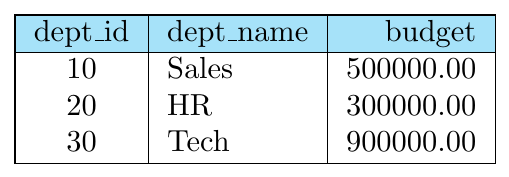
INSERT INTO department VALUES (10, 'Sales', 500000.00);
INSERT INTO department VALUES (20, 'HR', 300000.00);
INSERT INTO department VALUES (30, 'Tech', 900000.00);
Department Table After Insert:
Now insert into the child table employee.
Each dept_id must already exist in department.
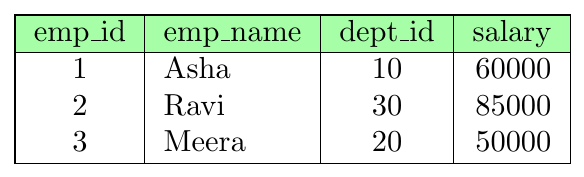
INSERT INTO employee VALUES (1, 'Asha', 10, 60000);
INSERT INTO employee VALUES (2, 'Ravi', 30, 85000);
INSERT INTO employee VALUES (3, 'Meera', 20, 50000);
Employee Table After Insert:
Attempt to insert an employee with a non-existing department.
INSERT INTO employee VALUES (4, 'Kiran', 99, 70000);Step-by-step outcome:
DB checks foreign key: dept_id = 99
No such dept_id exists in department table
Insert is rejected
No row is added
Result: Referential integrity error.
We can insert specifying attribute names in any order.
INSERT INTO employee (emp_id, emp_name, salary, dept_id)
VALUES (5, 'Neel', 72000, 10);
Why useful:
Order of columns can change
Some nullable columns may be skipped
Safer when table has many attributes
Many systems support inserting multiple rows in one statement.
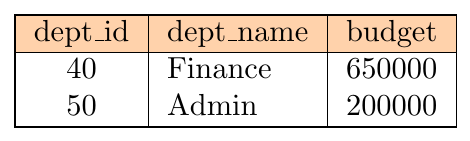
INSERT INTO department VALUES
(40, 'Finance', 650000.00),
(50, 'Admin', 200000.00);
Department Table After Insert:
Arithmetic expressions can be used inside VALUES.
INSERT INTO employee VALUES (6, 'Pooja', 30, 50000 + 5000);Stored salary becomes: 55000
Explanation: Expression is evaluated first, then inserted.
SQL Data Definition / Modification Commands
SQL provides commands to define, modify, and manage database objects and data.
Key Commands:
DELETE: Removes rows from a table based on a condition.
UPDATE : Modifies existing values in table rows.
ALTER: Modifies the structure of an existing table (add/drop/modify columns, constraints).
DROP: Removes entire database objects like tables, views, or indexes.
TRUNCATE: Removes all rows from a table quickly, resetting storage and optionally identity counters.
DELETE
Relation: student(sid, name, age, dept)
-- Delete students in 'Physics' department
DELETE FROM student
WHERE dept = 'Physics';
Result: Only rows where dept = 'Physics' are removed; table structure remains.
When a row in a parent table is deleted, the DBMS must ensure that no invalid references remain in related tables.
If another table contains a Foreign Key referencing the deleted row, the database must decide what to do.
When a referenced row is deleted, the DBMS can apply one of the following rules:
RESTRICT (Default)
Deletion is rejected if related rows exist.
Fails if instructors belong to CS.
CASCADE
Deletes the referencing rows automatically.
Deleting department → deletes its instructors.
SET NULL
Foreign key values in referencing table become NULL.
Instructor still exists but department becomes unknown.
CREATE TABLE instructor (
    ID char(5) PRIMARY KEY,
    name varchar(20),
    dept_name varchar(20),
    FOREIGN KEY (dept_name)
        REFERENCES department(dept_name)
        ON DELETE CASCADE
        ON UPDATE SET NULL
);
Meaning
ON DELETE CASCADE → deleting a department deletes its instructors.
ON UPDATE SET NULL → if department name changes, instructor.dept_name becomes NULL.
If no rule is specified → RESTRICT (default) prevents deletion/update.
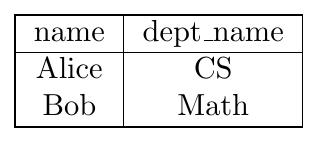
department

instructor
Query
DELETE FROM department
WHERE dept_name = 'CS';
Result
Deletion fails.
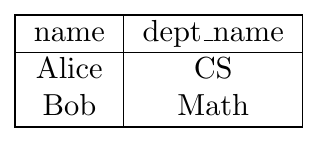
Reason: Instructor Alice still references department CS.
Database prevents the operation to maintain referential integrity.
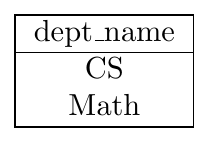
Before Deletion
department
instructor
Query
DELETE FROM department
WHERE dept_name = 'CS';
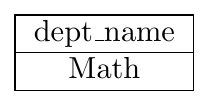
Result (CASCADE)
department
instructor
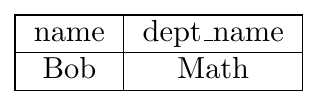
Instructor Alice is automatically deleted.
UPDATE
The UPDATE command is used to modify existing values in a table.
Syntax
UPDATE table_name
SET column1 = value1,
    column2 = value2
WHERE condition;
Important Points
Updates one or more columns in existing rows.
WHERE clause specifies which rows to update.
If WHERE is omitted, all rows in the table are updated.
Multiple columns can be updated in a single statement.
Can use expressions or values from other columns.
student
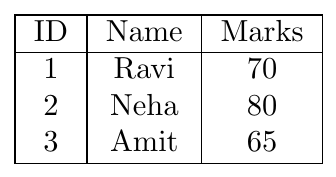
Query
UPDATE student
SET Marks = 85
WHERE Name = 'Neha';
After Update
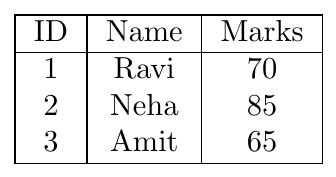
Explanation
Updates the marks of student Neha from 80 to 85.
ALTER
The ALTER TABLE command is used to modify the structure of an existing table. It can add new columns, modify column definitions, or remove columns.
Relation: student(sid, name, age)
-- Add a new column 'dept'
ALTER TABLE student
ADD dept VARCHAR(20);

-- Modify column 'age' datatype
ALTER TABLE student
MODIFY age INT;

-- Drop column 'dept'
ALTER TABLE student
DROP COLUMN dept;
Result: Table structure is changed; existing data may be affected based on operation.
DROP
The DROP command is used to permanently remove a database object such as a table. Both the table structure and all stored data are deleted.
Relation: student(sid, name, age, dept)
-- Drop the entire table
DROP TABLE student;
Result: Table and all its data are permanently deleted.
TRUNCATE
The TRUNCATE command removes all rows from a table quickly. The table structure remains unchanged.
Relation: student(sid, name, age, dept)
-- Remove all rows quickly
TRUNCATE TABLE student;
Result: Table structure remains, but all rows are removed. Identity columns reset (if any).
SQL Query and Basic Operations
An SQL query consists of three main clauses:
SELECT: Specifies the attributes or expressions to appear in the result.
FROM: Specifies the relations (tables) from which tuples are retrieved.
WHERE: (Optional) Specifies conditions to filter tuples.
General Syntax:
SELECT attribute1, attribute2, ...
FROM relation1 [, relation2, ...]
WHERE condition;
Notes:
Queries produce a relation as output.
By default, SQL allows duplicates. Use
DISTINCTto remove duplicates.Logical operators (
AND, OR, NOT) and comparison operators (=, <>, >, >=, <, <=) can be used in the WHERE clause.Arithmetic expressions (
+, -, *, /) can be used in the SELECT clause.
DISTINCTremoves duplicates from the result.ALLexplicitly keeps duplicates (default behavior).Arithmetic operations in SELECT compute values on-the-fly; they do not change table data.
Logical connectives allow combining multiple conditions.
WHERE filters rows based on comparison or logical expressions.
Select all Attributes (*)
The asterisk symbol (*) in the SELECT clause denotes all attributes.
Two important forms exist:
1. SELECT *
SELECT *
FROM table_list;
Returns all attributes of the result relation formed by the FROM clause.
2. table_name.*
SELECT table_name.*
FROM table_list;
Returns all attributes of only that specific table.
Properties:
Column order follows schema definition order.
Includes all columns — even if later added.
Common in quick inspection queries.
Not recommended in production views (schema-change risk).
When multiple tables appear in FROM:
SELECT * → returns all columns from all tables
SELECT A.* → only columns from table A
SELECT A.*, B.col → mix of full table + specific columns
Duplicate column names may appear in result
If duplicate attribute names exist, qualify them using table or alias.
student
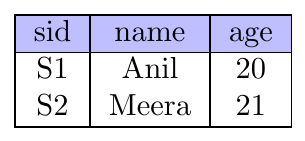
Query:
SELECT *
FROM student;
Result Relation:
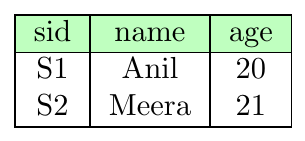
Renaming in SQL (AS)
SQL provides the AS clause to rename attributes (columns) and relations (tables) within the result of a query. This is called the rename operation.
Renaming is required because:
Different relations may contain attributes with the same name.
Arithmetic expressions in SELECT do not have default column names.
Derived columns need meaningful labels.
Long table names should be shortened for readability.
Self-joins require multiple logical copies of the same table.
Renaming does not change the base table — it only affects the query result.
AS can be used in two places.
Column rename (SELECT clause):
SELECT column_or_expression AS new_name
FROM table;
Relation rename (FROM clause — table alias):
SELECT ...
FROM table_name AS alias_name;
Rules and properties:
AS keyword is optional in many DBMS but recommended.
Alias exists only during query execution.
After aliasing, use alias.column instead of table.column.
Alias is mandatory in self-join queries.
Alias improves readability and reduces typing.
Relational Operators: Comparison Operators
Concept of Relational Operators
Relational operators (also known as Comparison Operators) are used in SQL to compare two expressions. When a comparison is made, the result is a Boolean value: either TRUE, FALSE, or UNKNOWN (in the case of NULL values). These operators are the backbone of data filtering in the WHERE clause.
The Standard Relational Operators are:
=: Equal to<>or!=: Not equal to>: Greater than<: Less than>=: Greater than or equal to<=: Less than or equal to
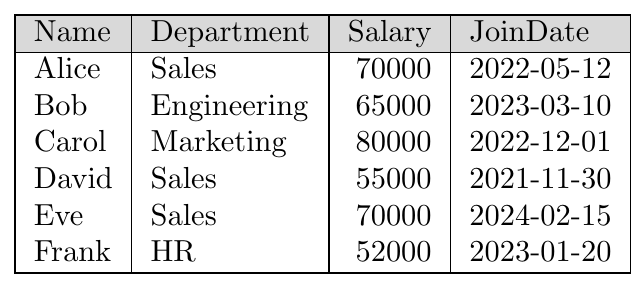
Consider the following employee table as our dataset:
Employee:
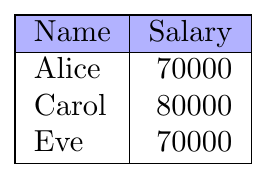
Find employees earning 70000 or more:
SELECT Name, Salary
FROM employee
WHERE Salary >= 70000;
Output Relation:
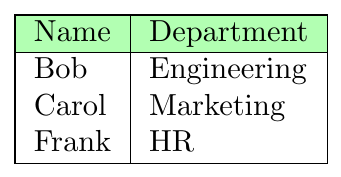
Find all employees who are NOT in the 'Sales' department:
SELECT Name, Department
FROM employee
WHERE Department <> 'Sales';
Note: <> and != are both accepted in most SQL dialects.
Output Relation:
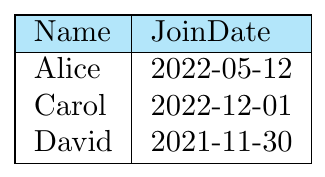
Find employees hired before the year 2023:
SELECT Name, JoinDate
FROM employee
WHERE JoinDate < '2023-01-01';
Output Relation:
Arithmetic Operations
SQL supports arithmetic operations in the SELECT clause:
+addition-subtraction*multiplication/division
These operations can be applied to numeric attributes or constants.
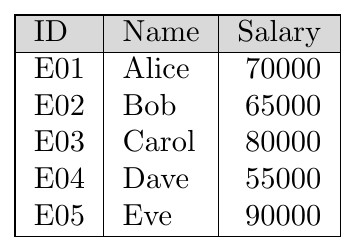
SELECT salary * 1.1 AS new_salary, salary + 500 AS incremented_salary
FROM employee;
Explanation: The query shows salary after 10% increase and after adding 500.
Input table employee:
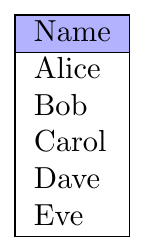
SELECT Name
FROM employee;
Output Relation:
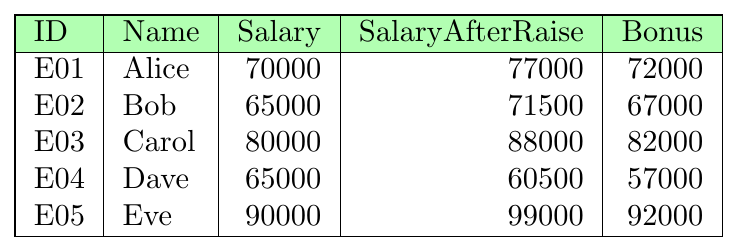
SELECT ID, Name, Salary, Salary * 1.1 AS SalaryAfterRaise, Salary + 2000 AS Bonus
FROM employee;
Output Relation:
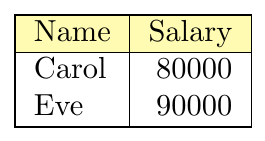
Find employees with salary $>$ 70000:
SELECT Name, Salary
FROM employee
WHERE Salary > 70000;
Output Relation:
Basic Logical Operators: AND OR
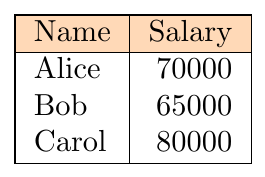
Find employees earning more than 60000 and less than 90000:
SELECT Name, Salary
FROM employee
WHERE Salary > 60000 AND Salary < 90000;
Output Relation:
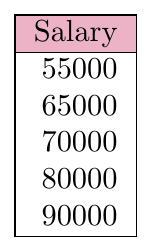
Suppose an employee table with duplicate salaries:
SELECT DISTINCT Salary
FROM employee;
Output Relation:
String Operations
SQL represents strings using single quotes.
Examples of string literals:
'Computer'
'Database Systems'
'CS101'
If a single quote appears inside a string, it must be written twice.
Example:
Text: It's correct
SQL string: 'It”s correct'
String comparison using equality (=) is defined as case sensitive in the SQL standard. Thus:
'data' = 'DATA' → false (standard behavior)
However, some systems (like MySQL default collations) may treat string comparison as case-insensitive unless configured otherwise.
SQL supports many string operations. Exact names may vary slightly across DBMS.
Common ones:
Concatenation
Standard operator:
||MySQL alternative:
CONCAT(s1,s2)
Case conversion
UPPER(s)— convert to uppercaseLOWER(s)— convert to lowercase
Length
LENGTH(s)— number of characters
Substring
SUBSTRING(s, start, len)
Trim spaces
TRIM(s)— removes leading/trailing spaces
Properties:
Functions can appear in SELECT and WHERE.
Function results can be renamed using AS.
Functions operate row-by-row.
SQL supports pattern matching using the LIKE operator.
Special pattern characters:
% → matches any substring (zero or more characters)
_ → matches exactly one character
Pattern matching is case sensitive in standard SQL, but may be case-insensitive in some systems.
Forms:
column LIKE pattern
column NOT LIKE pattern
Examples of patterns:
'Data
'
'___' → exactly 3 characters
'__
If pattern must include special characters (% or _), use ESCAPE.
Syntax:
column LIKE pattern ESCAPE 'escape_char'Rules:
Escape character appears before special symbol.
That symbol is treated as normal text.
Example meanings:
LIKE 'ab%%' ESCAPE '\' → starts with literal ab
LIKE 'file_1' ESCAPE '\' → matches file_1 exactly
Table: course
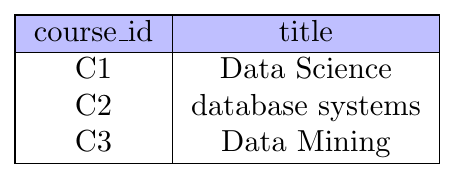
Find exact match.
SELECT course_id
FROM course
WHERE title = 'Data Science';
Step-by-step:
Compare full string
Case matters (standard SQL)
Only exact match selected
Result:
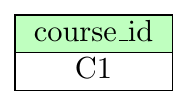
Table: student
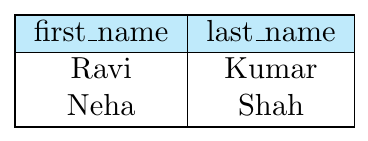
Create full name.
SELECT first_name || ' ' || last_name AS full_name
FROM student;
Result:
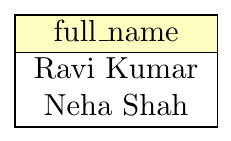
Table: department
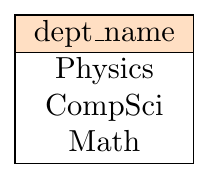
SELECT dept_name,
       UPPER(dept_name) AS upper_name,
       LOWER(dept_name) AS lower_name,
       LENGTH(dept_name) AS len
FROM department;
Result:
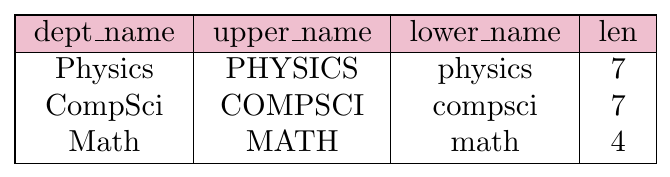
Table: building
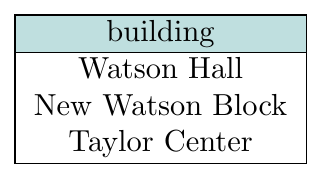
Find names containing Watson.
SELECT building
FROM building
WHERE building LIKE '
Result:
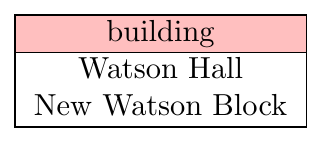
Table: codes
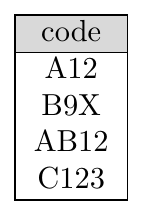
Match exactly 3-character codes.
SELECT code
FROM codes
WHERE code LIKE '___';
Result:
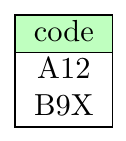
Table: files
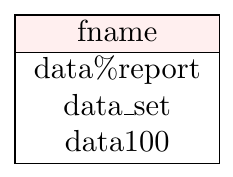
Match literal percent sign.
SELECT fname
FROM files
WHERE fname LIKE 'data\%
Step-by-step:
% treated as normal character
Then wildcard
Result:
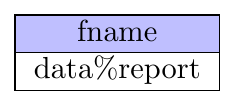
Table: trainer
SELECT *
FROM trainer;
Meaning:
Returns all attributes of the result relation.
Equivalent to listing every column explicitly.
Qualified form:
SELECT T.*
FROM trainer AS T;
Returns all columns only from alias T.
ORDER BY
SQL provides the ORDER BY clause to control the order in which tuples (rows) are displayed in the query result.
Basic syntax:
SELECT attributes
FROM table_list
WHERE condition
ORDER BY attribute_list;
Key properties:
Sorting is applied to the final result relation.
Default order is ascending.
Sorting can be done on one or more attributes.
Does not change stored table order — only display order.
Can be used with expressions and aliases.
Sort direction can be controlled explicitly.
ORDER BY column ASC   -- ascending (default)
ORDER BY column DESC  -- descending
Multi-attribute sorting is evaluated left to right:
First attribute sorted fully
Ties are broken using next attribute
Each attribute may have its own ASC/DESC
instructor
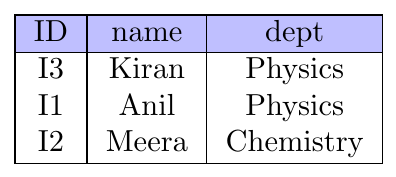
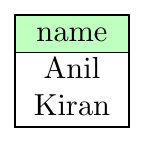
Query:
SELECT name
FROM instructor
WHERE dept = 'Physics'
ORDER BY name;
Result Relation (ascending by name):
employee
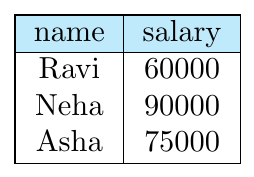
Query:
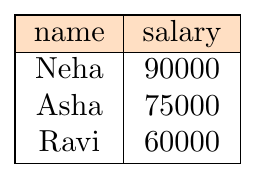
SELECT name, salary
FROM employee
ORDER BY salary DESC;
Result Relation (highest first):
instructor
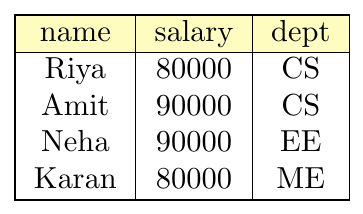
Requirement: Sort by salary descending, then name ascending.
SELECT *
FROM instructor
ORDER BY salary DESC, name ASC;
Result Relation:
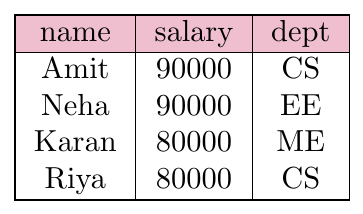
Tie handling:
Salary sorted first (DESC)
Equal salary → name sorted ASC
sales
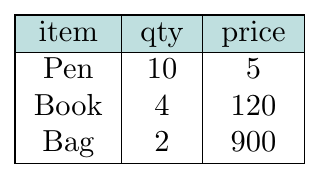
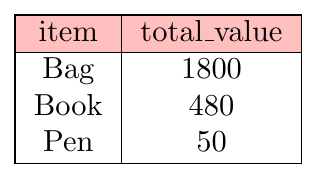
Order by computed total value.
SELECT item, qty * price AS total_value
FROM sales
ORDER BY total_value DESC;
Result Relation:
Alias can be used inside ORDER BY.
SELECT name, salary AS pay
FROM instructor
ORDER BY pay DESC;
Sorting uses the alias column label.
BETWEEN
SQL provides the BETWEEN operator to simplify range conditions in the WHERE clause.
Instead of writing two comparisons with AND, BETWEEN expresses a closed interval test.
Syntax:
column BETWEEN low_value AND high_valueEquivalent form:
column >= low_value AND column <= high_valueKey properties:
Range is inclusive of both limits.
Works with numeric, date, and string types.
Improves readability of range predicates.
Can be negated using NOT BETWEEN.
NOT BETWEEN selects values outside the range.
column NOT BETWEEN a AND bSQL also supports row constructors — tuple values written as:
(v1, v2, ..., vn)Tuple comparisons are allowed and use lexicographic ordering.
For tuples:
(a1, a2) = (b1, b2) → both components equal
(a1, a2) < (b1, b2) → compared left to right
Used for compact multi-column comparisons
instructor
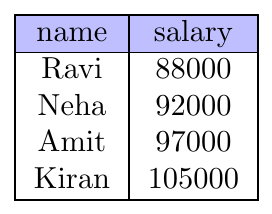
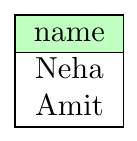
Query:
SELECT name
FROM instructor
WHERE salary BETWEEN 90000 AND 100000;
Result Relation:
Equivalent condition:
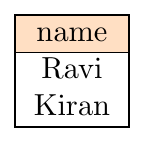
WHERE salary >= 90000 AND salary <= 100000;Query instructors outside the mid salary band.
SELECT name
FROM instructor
WHERE salary NOT BETWEEN 90000 AND 100000;
Result:
BETWEEN also works on strings using alphabetical order.
department
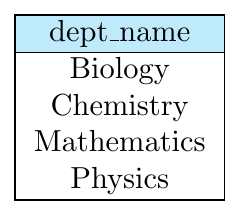
Query:
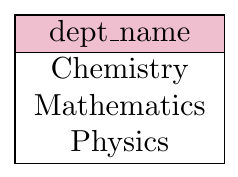
SELECT dept_name
FROM department
WHERE dept_name BETWEEN 'C' AND 'P';
Result (alphabetic range):
instructor
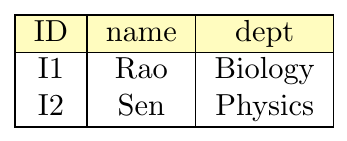
teaches
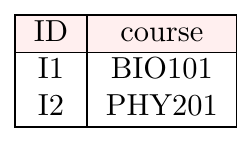
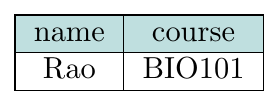
Tuple comparison query:
SELECT name, course
FROM instructor, teaches
WHERE (instructor.ID, dept) =
      (teaches.ID, 'Biology');
Result Relation:
Tuple comparisons follow left-to-right ordering.
SELECT *
FROM instructor
WHERE (salary, name) >= (90000, 'M');
Interpretation:
First compare salary
If salary equal → compare name
Acts like dictionary ordering
NULL Values
NULL represents a missing, unknown, or inapplicable value.
It does not mean:
zero
empty string
false
NULL means: value exists but is not known or not provided.
1. Arithmetic Operations
Any arithmetic expression involving NULL evaluates to NULL.
A + 5 → NULL if A is NULL
A * 10 → NULL if A is NULL
A / B → NULL if A or B is NULL
Reason: Result cannot be determined if an input is unknown.
2. Comparison Operations
Any comparison with NULL results in UNKNOWN.
salary > 5000     → UNKNOWN if salary is NULL
A = NULL          → UNKNOWN
1 < NULL          → UNKNOWN
NULL = NULL       → UNKNOWN
SQL uses three-valued logic: TRUE, FALSE, UNKNOWN.
Boolean operators are extended to handle UNKNOWN.
AND rules
TRUE AND UNKNOWN = UNKNOWN
FALSE AND UNKNOWN = FALSE
UNKNOWN AND UNKNOWN = UNKNOWN
OR rules
TRUE OR UNKNOWN = TRUE
FALSE OR UNKNOWN = UNKNOWN
UNKNOWN OR UNKNOWN = UNKNOWN
NOT rule
NOT UNKNOWN = UNKNOWN
If a WHERE predicate evaluates to FALSE or UNKNOWN, the tuple is not selected.
employee
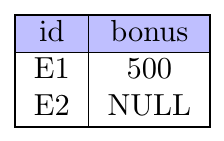
SELECT id, bonus + 100
FROM employee;
Result:
E1 → 600
E2 → NULL
SELECT id
FROM employee
WHERE bonus > 200;
If bonus is NULL → condition becomes UNKNOWN → row excluded.
NULL cannot be tested using = or <>.
Wrong:
WHERE salary = NULLCorrect:
WHERE salary IS NULL
WHERE salary IS NOT NULLSELECT name
FROM instructor
WHERE salary IS NULL;SQL allows explicit test of UNKNOWN predicate result.
condition IS UNKNOWN
condition IS NOT UNKNOWNSELECT name
FROM instructor
WHERE (salary > 10000) IS UNKNOWN;Selects rows where salary is NULL.
In duplicate elimination (DISTINCT):
Two NULL values are treated as equal.
Example tuples: \[ (A, NULL), (A, NULL) \]
DISTINCT keeps only one copy.
Note: This differs from predicate logic where
NULL = NULL → UNKNOWNFor UNION, INTERSECT, EXCEPT:
Tuples are considered identical if:
All non-NULL attributes equal
Corresponding attributes are both NULL
Therefore duplicate NULL tuples collapse into one in set operations.
table T
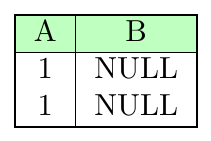
SELECT DISTINCT * FROM T;Result keeps only one tuple.
AGGREGATE FUNCTIONS
Aggregate Functions: These operations process a collection of values (either a set or a multiset) to produce a single scalar output.
Standard SQL Aggregates: SQL provides five primary built-in functions:
avg: Calculates the arithmetic mean.min: Identifies the minimum value.max: Identifies the maximum value.sum: Computes the numerical total.count: Returns the number of elements in the collection.
Data Type Constraints: While sum and avg are strictly limited to numeric datasets, min, max, and count are versatile enough to handle non-numeric data, such as character strings.
SELECT AGG_FUNCTION(column)
FROM table
WHERE condition;
Examples:
SELECT AVG(salary) FROM instructor;
SELECT SUM(credits) FROM course;
SELECT MAX(age) FROM student;COUNT(*)
Counts every row
Includes rows containing NULL
COUNT(column)
Counts only rows where column is NOT NULL
COUNT(DISTINCT column)
Counts distinct non-NULL values only
Aggregation and Null Values
In SQL aggregation, NULL values are treated specially.
Rule: All aggregate functions ignore NULL values in their input, except COUNT(*).
This prevents unknown values from corrupting aggregate results.
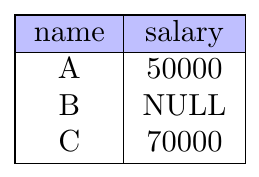
Assume relation instructor(name, dept, salary) where some salary values are NULL.
SUM, AVG, MIN, MAX
NULL values are skipped
Only non-NULL values are used
COUNT(column)
Counts only non-NULL values
COUNT(*)
Counts all rows
NULL does not matter
instructor
Query:
SELECT SUM(salary), AVG(salary), COUNT(salary), COUNT(*)
FROM instructor;
Computed on values: 50000, 70000
Result:
SUM = 120000
AVG = 60000
COUNT(salary) = 2
COUNT(*) = 3
Row with NULL salary is ignored except in COUNT(*).
After NULL removal, the value set may become empty.
SQL defines:
COUNT → returns 0
SUM → returns NULL
AVG → returns NULL
MIN → returns NULL
MAX → returns NULL
Reason: Only COUNT has a well-defined identity for empty sets.
SELECT AVG(salary)
FROM instructor
WHERE dept = 'Astronomy';
If no matching rows → result is NULL (not 0).
instructor
SELECT AVG(salary), SUM(salary)
FROM instructor;
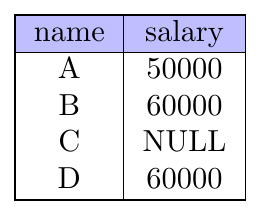
NULL salary is ignored in computation.
AVG = (50000 + 60000 + 60000)/3
SUM = 170000
SELECT MIN(salary), MAX(salary)
FROM instructor;
Result:
MIN = 50000
MAX = 60000
SELECT COUNT(*), COUNT(salary)
FROM instructor;
COUNT(*) = 4
COUNT(salary) = 3
DISTINCT can be used inside aggregate functions.
SELECT COUNT(DISTINCT salary)
FROM instructor;
Counts only unique non-NULL values.
Groups
GROUP BY HAVING
GROUP BY is used to divide tuples into groups based on one or more attributes, and then apply aggregate functions on each group separately.
Instead of one aggregate result for the whole table, we get one aggregate result per group.
Typical use: summaries per department, per course, per year, etc.
SQL evaluates grouped queries logically in this order:
FROM
WHERE
GROUP BY
AGGREGATE
HAVING
SELECT
ORDER BY
Meaning:
WHERE filters rows first
GROUP BY forms groups
Aggregates are computed per group
HAVING filters groups
SELECT outputs final columns
SELECT group_column, AGG_FUNC(column)
FROM table
WHERE row_condition
GROUP BY group_column;
Each distinct value of group_column forms one group.
In SELECT list of a grouped query:
Every attribute must be either:
present in GROUP BY, OR
used inside an aggregate function
Otherwise SQL raises an error.
Invalid:
SELECT dept, salary
FROM instructor
GROUP BY dept;
salary is neither grouped nor aggregated.
SELECT group_col, AGG_FUNC(col)
FROM table
WHERE row_condition
GROUP BY group_col
HAVING aggregate_condition;
HAVING condition is applied per group.
SELECT dept, AVG(salary)
FROM instructor
GROUP BY dept
HAVING AVG(salary) > 70000;
Evaluation:
CS avg = 85000 → kept
EE avg = 65000 → removed
For a query:
SELECT dept, AVG(salary)
FROM instructor
WHERE salary > 50000
GROUP BY dept
HAVING AVG(salary) > 70000;
SQL processes it in this exact order:
FROM — load tables
WHERE — filter rows
GROUP BY — create groups
Aggregate — compute per group
HAVING — filter groups
SELECT — produce output columns
ORDER BY — sort result (if present)
instructor
Query:
SELECT dept, AVG(salary)
FROM instructor
WHERE salary >= 60000
GROUP BY dept;
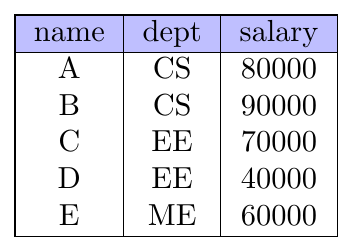
Step 1 — FROM
All rows are read.
Step 2 — WHERE filter
Keep only salary ≥ 60000
Remaining rows:
A CS 80000
B CS 90000
C EE 70000
E ME 60000
Row D removed.
Step 3 — GROUP Formation
Rows are partitioned by dept:
CS → (80000, 90000)
EE → (70000)
ME → (60000)
Step 4 — Aggregate Computation
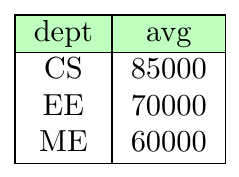
AVG per group:
CS → 85000
EE → 70000
ME → 60000
Step 5 — SELECT Output
Final relation:
Query:
SELECT dept, AVG(salary)
FROM instructor
WHERE salary >= 60000
GROUP BY dept
HAVING AVG(salary) > 65000;
Steps 1–4 same as before.
Step 5 — HAVING filter on groups
CS → 85000 → keep
EE → 70000 → keep
ME → 60000 → remove
Final Output
CS, EE only.
SELECT dept, COUNT(*)
FROM instructor
GROUP BY dept;
Counts total rows per department (NULL allowed).
GROUP BY can use multiple attributes.
Each unique combination forms a group.
GROUP BY dept, yearGrouping key = (dept, year)
SELECT dept, salary, COUNT(*)
FROM instructor
GROUP BY dept, salary;
Each (dept, salary) pair becomes one group.
HAVING filters groups after aggregation.
WHERE filters rows before grouping.
Key difference:
WHERE → cannot use aggregates
HAVING → can use aggregates
SELECT dept, AVG(salary)
FROM instructor
WHERE salary > 60000
GROUP BY dept
HAVING AVG(salary) > 75000;
Steps:
WHERE → remove rows salary ≤ 60000
GROUP → form groups
AVG → compute per group
HAVING → filter groups
Find departments with at least 2 instructors.
SELECT dept, COUNT(*)
FROM instructor
GROUP BY dept
HAVING COUNT(*) >= 2;If GROUP BY is absent, entire table is treated as one group.
HAVING can still be used.
SELECT AVG(salary)
FROM instructor
HAVING AVG(salary) > 70000;SELECT dept, AVG(salary) AS avg_sal
FROM instructor
GROUP BY dept
ORDER BY avg_sal DESC;ORDER BY applies after grouping.
Selecting non-grouped, non-aggregated column
Using aggregate in WHERE
Forgetting that WHERE runs before grouping
Confusing HAVING with WHERE
Rule:
Row filter → WHERE
Group filter → HAVING
GROUP BY and Null Values
When grouping:
All NULL values form one group
Aggregates inside the group still ignore NULL inputs
Unlike comparisons, GROUP BY treats NULL = NULL for grouping purposes.
So:
GROUP BY deptAll rows with dept = NULL go into one group.
SUM ignores NULL — does not return NULL unless no values remain
COUNT(column) $\neq$ COUNT(*)
AVG never divides by total rows — divides by non-NULL rows only
Empty aggregate → NULL (except COUNT)
NULL group exists in GROUP BY
Joins
Queries on Multiple Tables
Many practical SQL queries need data from more than one relation. Such queries are called
multi-relation queries. SQL allows combining multiple tables using the FROM
clause and specifying matching conditions in the WHERE clause (or using JOIN syntax).
Core idea:
Each relation listed in the FROM clause participates in query evaluation.
SQL conceptually forms a Cartesian product of those relations.
The WHERE clause filters only meaningful tuple combinations.
The SELECT clause finally projects required attributes.
Typical business questions answered using multi-relation queries:
Get employee names with department buildings.
List students with course titles.
Show orders with customer details.
Find instructors with courses taught.
General structure:
\[ \texttt{SELECT } A_1, A_2, \dots, A_n \\ \texttt{FROM } r_1, r_2, \dots, r_m \\ \texttt{WHERE } P; \]
Rules:
FROM lists all relations involved.
WHERE contains join predicates and filters.
If attribute names repeat across tables, prefix with relation name.
If WHERE is omitted → full Cartesian product is returned.
Logical evaluation order: FROM → WHERE → SELECT.
Cartesian Product or CROSS JOIN
If multiple tables are listed in FROM without a matching condition, SQL generates a Cartesian product:
Every tuple of table A pairs with every tuple of table B.
Result size = $|A| \times |B|$
Usually very large and rarely meaningful by itself.
Cartesian Product Without WHERE Clause is called CROSS JOIN
Join predicates in WHERE restrict combinations.
When the same attribute appears in multiple relations:
Use qualified names: table.attribute
Example:
employee.dept_id,department.dept_idIf attribute appears in only one table → prefix optional
All relations in FROM must have distinct names (or aliases).
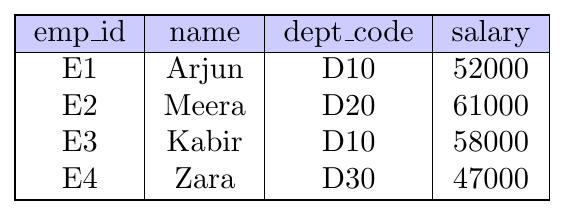
Assume two colorful relations:
employee
department
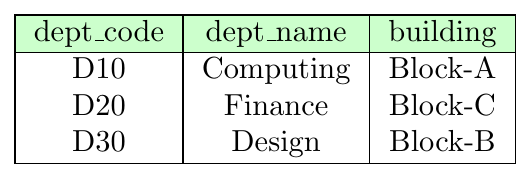
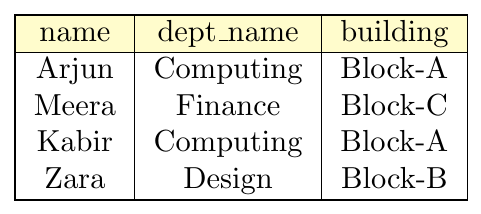
Goal: Get employee names with department name and building.
Step-by-step logic:
FROM combines employee × department
WHERE keeps rows where dept codes match
SELECT outputs chosen columns
SELECT name, department.dept_name, building
FROM employee, department
WHERE employee.dept_code = department.dept_code;
Result Relation
Using same tables but NO matching predicate. Cartesian Product Without WHERE Clause is called CROSS JOIN
SELECT name, dept_name
FROM employee, department;
Step-by-step:
employee has 4 rows
department has 3 rows
Result size = 4 × 3 = 12 rows
Every employee paired with every department
(Only partial output shown)
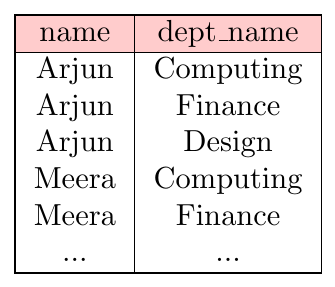
This is usually incorrect for real queries — missing join condition.
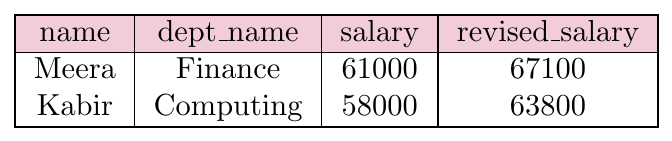
Find employees with department info whose salary after 10% raise exceeds 60000.
SELECT name,
       department.dept_name,
       salary,
       salary * 1.10 AS revised_salary
FROM employee, department
WHERE employee.dept_code = department.dept_code
  AND salary * 1.10 > 60000;
Arithmetic operator used: multiplication (*)
Evaluation:
Join first
Compute salary * 1.10
Apply filter condition
Output projected columns
Add third table:
project
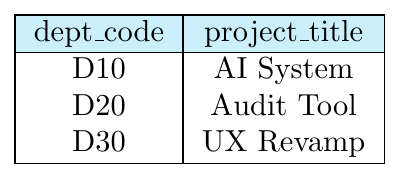
Get employee, department, and project.
SELECT name, dept_name, project_title
FROM employee, department, project
WHERE employee.dept_code = department.dept_code
  AND department.dept_code = project.dept_code;
Process:
Cartesian product of 3 tables
Two join predicates restrict matches
Final projection returned
Rename Tables
When a table is renamed in a query using AS, the new name is called a:
correlation name
table alias
tuple variable
All mean the same concept: a temporary query-level name for a relation.
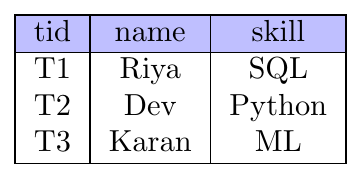
Tables:
trainer
teaches
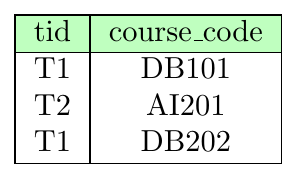
Rename output attribute names.
SELECT name AS trainer_name,
       course_code AS course_id
FROM trainer, teaches
WHERE trainer.tid = teaches.tid;
Result Relation
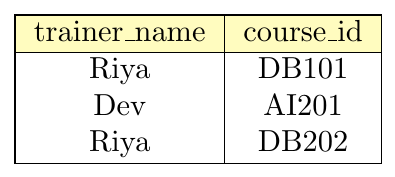
Step-by-step:
Join on matching tid
Select two attributes
Rename them using AS
Arithmetic expressions produce unnamed columns — alias is useful.
trainer
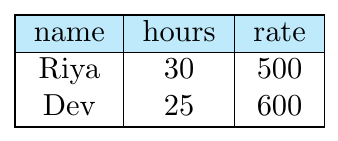
Compute payment.
SELECT name,
       hours * rate AS total_payment
FROM trainer;
Result Relation
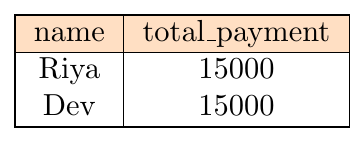
Without AS, the column header would be system-generated.
Rename tables to simplify query writing.
SELECT T.name, C.course_code
FROM trainer AS T, teaches AS C
WHERE T.tid = C.tid;
Why alias helps:
Avoids long prefixes
Improves readability
Reduces typing errors
Clearer join conditions
Many DBMS allow alias without AS.
SELECT name trainer_name
FROM trainer;
Equivalent to using AS — but AS is clearer and preferred in textbooks.
SELF JOIN
Find trainers whose rate is greater than at least one trainer with skill = 'SQL'.
trainer
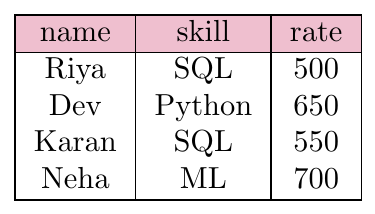
Self-join requires aliases to distinguish copies.
SELECT DISTINCT A.name
FROM trainer AS A, trainer AS B
WHERE A.rate > B.rate
  AND B.skill = 'SQL';
OR
SELECT DISTINCT A.name
FROM trainer AS A
JOIN trainer AS B ON A.rate > B.rate
WHERE B.skill = 'SQL';
Step-by-step:
Table used twice → A and B
Compare rates across rows
Filter B rows where skill = SQL
Select A names
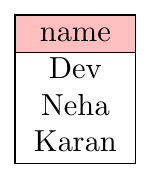
Result Relation
INNER JOIN
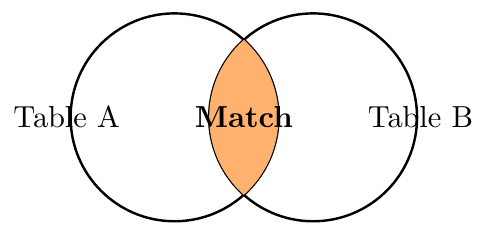
The INNER JOIN is the most fundamental join type in SQL. It selects records that have matching values in both tables being joined.
Key Characteristics:
It returns only the intersection of two tables.
If a row in Table A does not have a corresponding match in Table B, it will not appear in the result.
It is used to combine related data stored in separate tables.
Venn Diagram Representation:
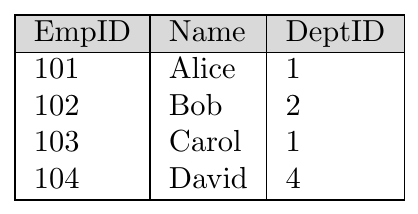
Employee Table:
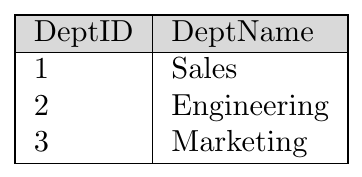
Department Table:
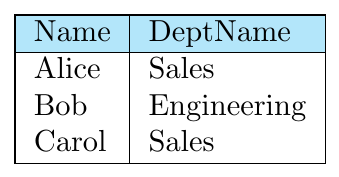
Find the department name for every employee that has a valid department:
SELECT E.Name, D.DeptName
FROM employee AS E
INNER JOIN department AS D ON E.DeptID = D.DeptID;
Note: David (DeptID 4) is excluded because 4 does not exist in the Department table. 'Marketing' (DeptID 3) is excluded because no employee belongs to it.
Output Relation:
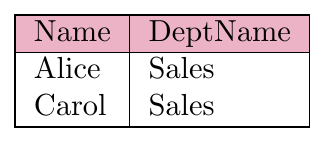
Find employees specifically in the 'Sales' department:
SELECT E.Name, D.DeptName
FROM employee AS E
INNER JOIN department AS D ON E.DeptID = D.DeptID
WHERE D.DeptName = 'Sales';
Output Relation:
NATURAL JOIN
A NATURAL JOIN is a specialized type of join that automatically joins two tables based on all columns that have the same name and data type in both tables.
Key Characteristics:
Implicit Join Condition: You do not use the
ONorUSINGclause; SQL identifies matching columns automatically.Column Deduplication: Unlike a standard Join, the Natural Join automatically removes duplicate columns from the output.
Risk Factor: If tables share common names like
IDorCreated_Atthat aren't intended for joining, it can lead to empty or incorrect results.
Venn Diagram Representation: Like an Inner Join, it represents the intersection, but specifically restricted by shared column names.
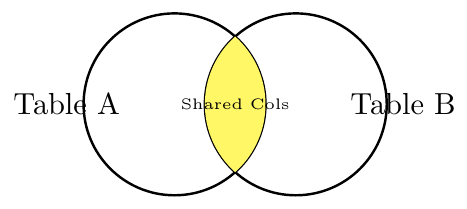
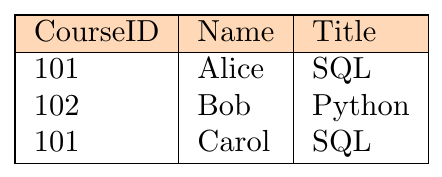
In this example, both tables share the column CourseID.
Input Tables:
students Table:
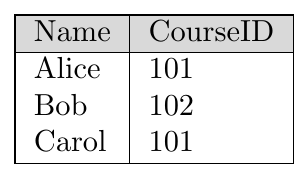
courses Table:
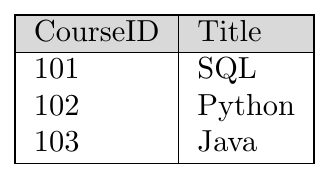
SELECT * FROM students NATURAL JOIN courses;Output Relation:
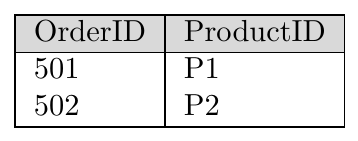
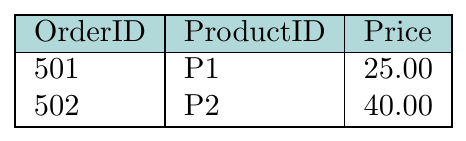
Tables share the ProductID column.
Input Tables:
orders Table:
products Table:
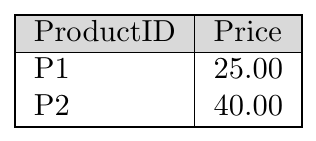
SELECT OrderID, ProductID, Price
FROM orders NATURAL JOIN products;
Output Relation:
LEFT (OUTER) JOIN
The LEFT JOIN (or LEFT OUTER JOIN) returns all records from the left table (Table A), and the matched records from the right table (Table B).
Key Characteristics:
Persistence: Every row from the left table is guaranteed to appear at least once in the result.
Handling Mismatches: If there is no match in the right table for a specific row, the result will contain
NULLvalues for all columns of the right table.Directional: The order in which you list the tables matters significantly.
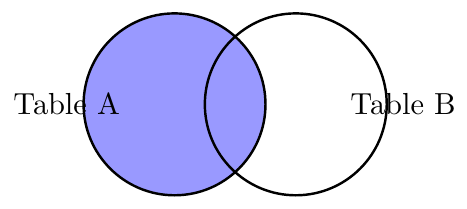
Venn Diagram Representation: The result is the entirety of Table A, including the overlapping section with Table B.
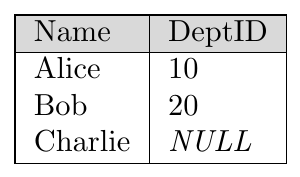
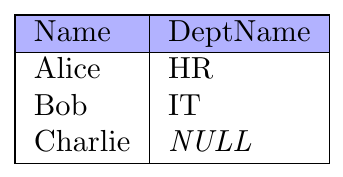
Identify all employees, including those who have not yet been assigned to a department.
Input Tables:
employee Table (Left):
department Table (Right):
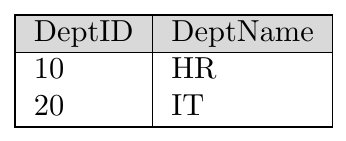
SELECT E.Name, D.DeptName
FROM employee E
LEFT JOIN department D ON E.DeptID = D.DeptID;
Output Relation:
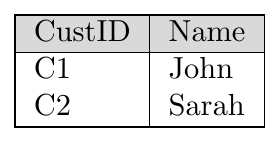
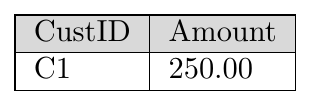
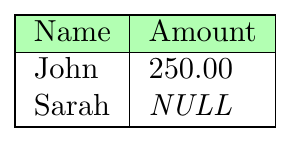
List all customers and their order amounts. Customers without orders will show NULL.
Input Tables:
customers Table (Left):
orders Table (Right):
SELECT C.Name, O.Amount
FROM customers C
LEFT JOIN orders O ON C.CustID = O.CustID;
Output Relation:
RIGHT (OUTER) JOIN
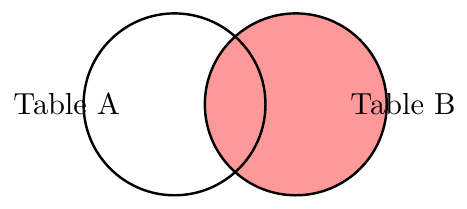
The RIGHT JOIN (or RIGHT OUTER JOIN) is the mirror image of the Left Join. It returns all records from the right table (Table B), and the matched records from the left table (Table A).
Key Characteristics:
Persistence: Every row from the right table is guaranteed to appear in the result set.
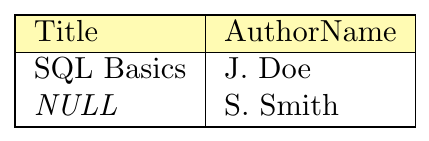
Handling Mismatches: If there is no matching row in the left table for a specific row in the right table, the result will contain
NULLvalues for the columns belonging to the left table.Logic: It is essentially a Left Join with the table order reversed.
Venn Diagram Representation: The result covers the entirety of Table B, including the overlapping section where records match Table A.
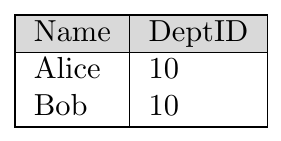
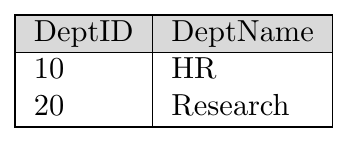
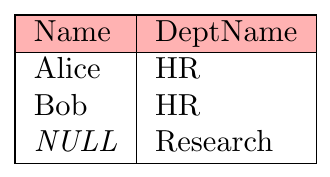
Identify all departments, including those that currently have no employees assigned to them.
Input Tables:
employee Table (Left):
department Table (Right):
SELECT E.Name, D.DeptName
FROM employee E
RIGHT JOIN department D ON E.DeptID = D.DeptID;
Output Relation:
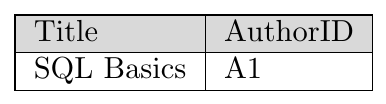
List all authors and the titles of books they have written in the database.
Input Tables:
books Table (Left):
authors Table (Right):
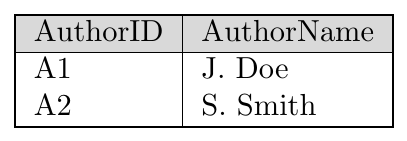
SELECT B.Title, A.AuthorName
FROM books B
RIGHT JOIN authors A ON B.AuthorID = A.AuthorID;
Output Relation:
FULL (OUTER) JOIN
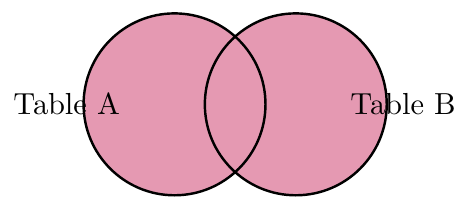
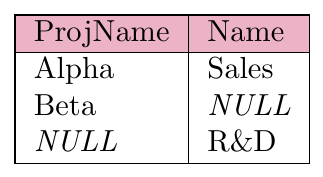
The FULL JOIN returns all records when there is a match in either left (Table A) or right (Table B) table records. It essentially combines the results of both a Left and a Right Join.
Key Characteristics:
Complete Visibility: It retains every row from both tables.
NULL Padding: For rows where there is no match,
NULLvalues are placed in the columns of the table that lacks the matching record.Compatibility Note: Some databases (like MySQL) do not support
FULL JOINdirectly and require aUNIONof a Left and Right Join.
Venn Diagram Representation: The result is the union of both sets, covering all areas of both circles.
List all projects and all departments, showing links where they exist.
Input Tables:
projects Table (Left):
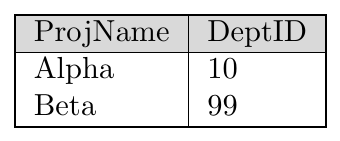
departments Table (Right):
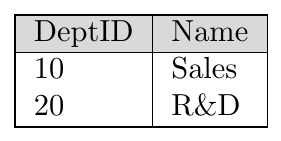
SELECT P.ProjName, D.Name
FROM projects P
FULL OUTER JOIN departments D ON P.DeptID = D.DeptID;
Output Relation:
Set Operations
In SQL, the UNION, INTERSECT, and EXCEPT operators allow us to perform set-based logic directly on the results of our queries.
UNION
The UNION operator combines the results of two SELECT queries and returns tuples that appear in either result.
Syntax:
SELECT column_list
FROM table1
WHERE condition
UNION
SELECT column_list
FROM table2
WHERE condition;
Rules:
Both queries must return the same number of columns.
Corresponding columns must have compatible domains.
Column names in output come from the first query.
Duplicates are automatically removed.
Parentheses around subqueries are optional (DB dependent).
UNION ALL performs multiset union.
query1
UNION ALL
query2;
Properties:
Does not remove duplicates.
Faster than UNION (no duplicate elimination step).
Duplicate count in result = sum of occurrences in both queries.
Used when duplicate tuples are meaningful.
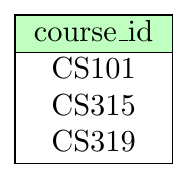
section
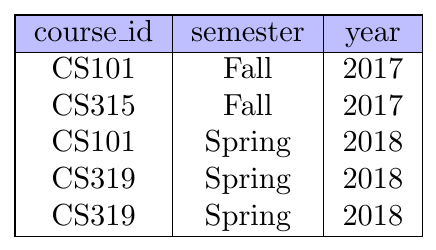
Query:
SELECT course_id
FROM section
WHERE semester = 'Fall' AND year = 2017
UNION
SELECT course_id
FROM section
WHERE semester = 'Spring' AND year = 2018;
Result Relation (duplicates removed):
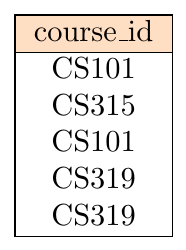
Using same table.
SELECT course_id
FROM section
WHERE semester = 'Fall' AND year = 2017
UNION ALL
SELECT course_id
FROM section
WHERE semester = 'Spring' AND year = 2018;
Result Relation (duplicates preserved):
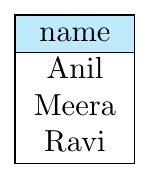
ug_students
pg_students
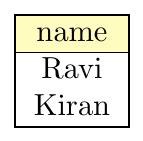
Query:
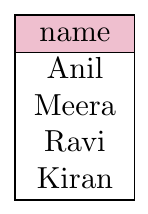
SELECT name FROM ug_students
UNION
SELECT name FROM pg_students;
Result:
Valid UNION (same column count and type):
SELECT dept_name
FROM department
UNION
SELECT building
FROM department;
Invalid UNION (different column counts):
-- ERROR
SELECT name, salary FROM instructor
UNION
SELECT name FROM employee;ORDER BY applies to the final combined result.
SELECT name FROM ug_students
UNION
SELECT name FROM pg_students
ORDER BY name;
Sorting happens after duplicate elimination.
INTERSECTION
The INTERSECT operator returns only those tuples that appear in both query results.
Syntax:
SELECT column_list
FROM table1
WHERE condition
INTERSECT
SELECT column_list
FROM table2
WHERE condition;
Rules:
Both queries must return same number of columns.
Corresponding columns must have compatible domains.
Result column names come from first query.
Duplicates are automatically removed.
Output = set intersection of the two results.
INTERSECT ALL keeps duplicates.
query1
INTERSECT ALL
query2;
Duplicate rule:
Duplicate count in result = minimum(count in query1, count in query2)
Uses multiset (bag) semantics.
Not supported in many DBMS implementations.
Note:
MySQL does not support INTERSECT directly.
Workaround uses subqueries with IN or EXISTS.
section
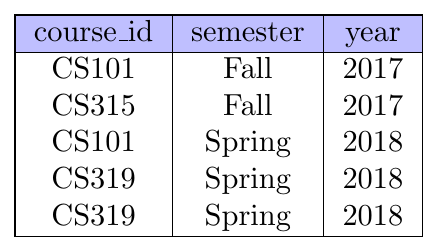
Query:
SELECT course_id
FROM section
WHERE semester = 'Fall' AND year = 2017
INTERSECT
SELECT course_id
FROM section
WHERE semester = 'Spring' AND year = 2018;
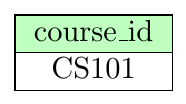
Result Relation (only common course):
Assume:
Fall 2017 has 4 sections of ECE101
Spring 2018 has 2 sections of ECE101
SELECT course_id
FROM section
WHERE semester='Fall' AND year=2017
INTERSECT ALL
SELECT course_id
FROM section
WHERE semester='Spring' AND year=2018;
Result contains:
ECE101 appears 2 times
Minimum of (4, 2)
clubA
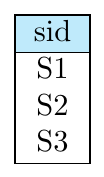
clubB
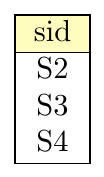
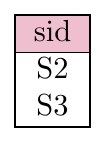
SELECT sid FROM clubA
INTERSECT
SELECT sid FROM clubB;
Result:
Equivalent of INTERSECT in MySQL:
SELECT DISTINCT course_id
FROM section
WHERE semester='Fall' AND year=2017
AND course_id IN (
  SELECT course_id
  FROM section
  WHERE semester='Spring' AND year=2018
);SELECT DISTINCT s1.course_id
FROM section s1
WHERE semester='Fall' AND year=2017
AND EXISTS (
SELECT 1
FROM section s2
WHERE s2.course_id = s1.course_id
AND semester='Spring' AND year=2018
);EXCEPT
The EXCEPT operator returns all tuples that appear in the first query result but not in the second.
It performs set difference.
Syntax:
SELECT column_list
FROM table1
WHERE condition
EXCEPT
SELECT column_list
FROM table2
WHERE condition;
Rules:
Both queries must return same number of columns.
Corresponding columns must have compatible domains.
Result column names come from first query.
Duplicate tuples are removed before difference.
Output = tuples in query1 − tuples in query2.
EXCEPT ALL keeps duplicate counts.
query1
EXCEPT ALL
query2;
Duplicate rule:
Result count = count(query1) − count(query2)
Included only if difference is positive.
Uses multiset (bag) semantics.
DBMS notes:
Oracle uses keyword MINUS instead of EXCEPT.
MySQL does not support EXCEPT.
MySQL workaround uses NOT IN / NOT EXISTS.
section
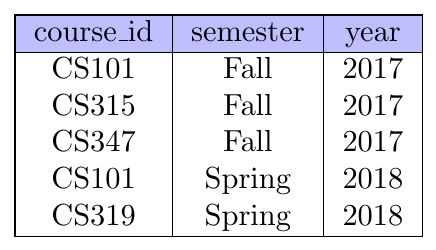
Query:
SELECT course_id
FROM section
WHERE semester='Fall' AND year=2017
EXCEPT
SELECT course_id
FROM section
WHERE semester='Spring' AND year=2018;
Result Relation:
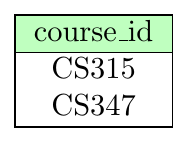
CS101 removed because it appears in Spring also.
Assume:
Fall has 4 sections of ECE101
Spring has 2 sections of ECE101
SELECT course_id
FROM section
WHERE semester='Fall'
EXCEPT
SELECT course_id
FROM section
WHERE semester='Spring';
Result:
No ECE101 appears
Because duplicates are removed before subtraction
Using same counts:
SELECT course_id
FROM section
WHERE semester='Fall'
EXCEPT ALL
SELECT course_id
FROM section
WHERE semester='Spring';
Result:
ECE101 appears 2 times
Because 4 − 2 = 2
registered
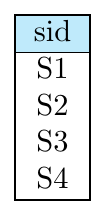
paid_fees
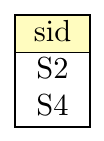
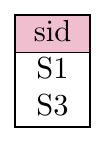
SELECT sid FROM registered
EXCEPT
SELECT sid FROM paid_fees;
Result:
SELECT DISTINCT course_id
FROM section
WHERE semester='Fall' AND year=2017
AND course_id NOT IN (
  SELECT course_id
  FROM section
  WHERE semester='Spring' AND year=2018
);SELECT DISTINCT s1.course_id
FROM section s1
WHERE semester='Fall' AND year=2017
AND NOT EXISTS (
SELECT 1
FROM section s2
WHERE s2.course_id = s1.course_id
AND semester='Spring' AND year=2018
);Nested Queries
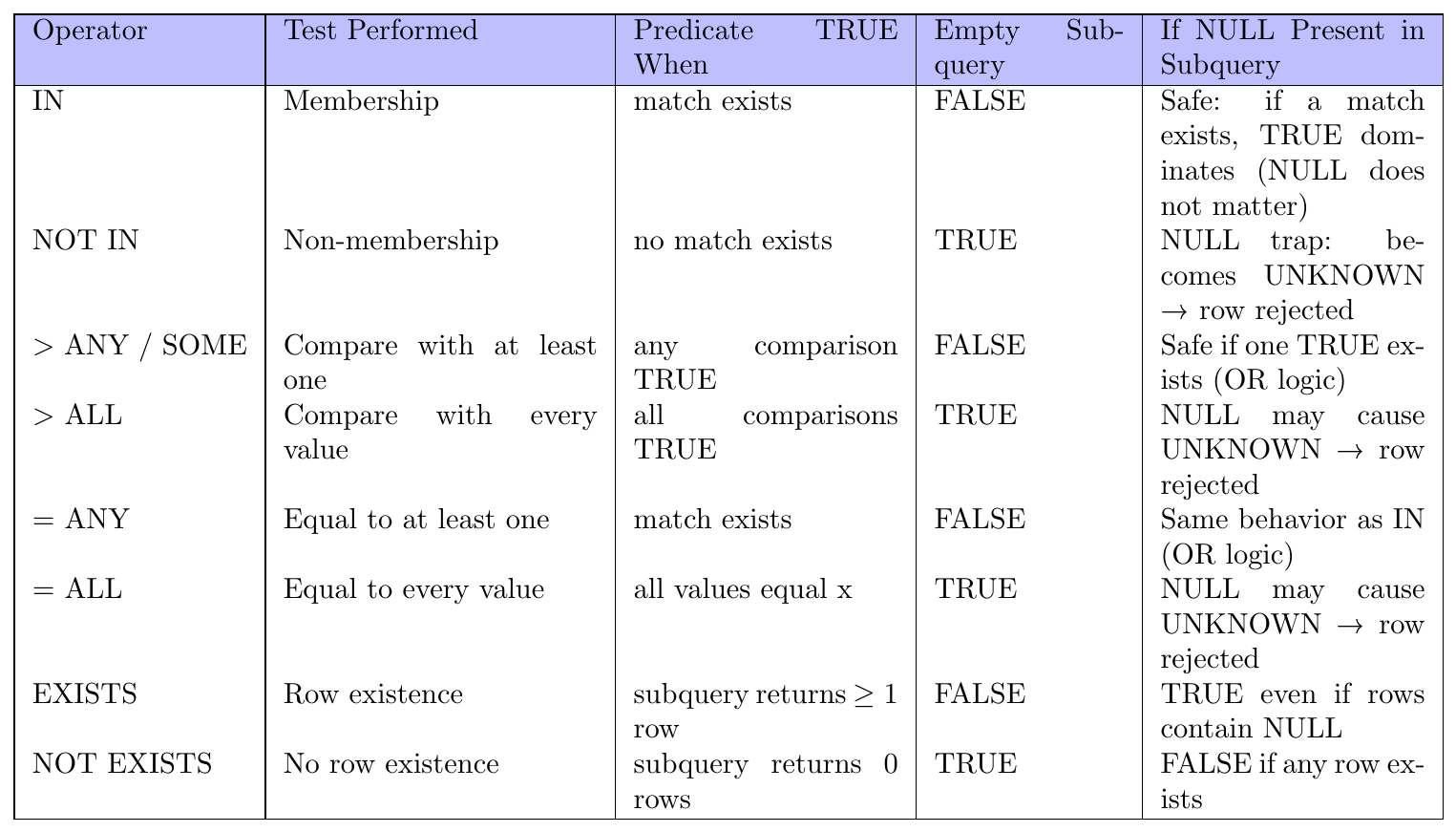
Nested queries (subqueries) are SQL queries written inside another query. They are evaluated either:
once (non-correlated subquery), or
once per outer row (correlated subquery)
They are commonly used with:
IN / NOT IN
SOME / ANY / ALL
EXISTS / NOT EXISTS
Set Membership: IN & NOT IN
Checks whether a value belongs to the result set of a subquery.
Syntax:
value IN (subquery)True if value matches any element returned by subquery.
Find instructors who belong to departments located in Delhi.
SELECT name
FROM instructor
WHERE dept_name IN (
    SELECT dept_name
    FROM department
    WHERE city = 'Delhi'
);
Execution Steps
Inner query returns set of dept_name (Delhi departments)
Outer query checks membership in that set
value NOT IN (subquery)Equivalent to: value $\neq$ every element of set.
If subquery result contains even one NULL → comparison becomes UNKNOWN → no rows returned.
If subquery returns: {CS, EE, NULL}
Then:
dept_name NOT IN (...)Result → UNKNOWN → filtered out.
Set Comparison: SOME, ANY & ALL
Used when subquery returns numeric or comparable values.
Form:
value > ANY (subquery)
value > ALL (subquery)
ANY and SOME are synonyms.
x > ANY(S)True if x is greater than at least one value in S.
Equivalent to OR over comparisons.
Find instructors earning more than at least one CS instructor.
SELECT name
FROM instructor
WHERE salary > ANY (
    SELECT salary
    FROM instructor
    WHERE dept_name = 'CS'
);x > ALL(S)True if x is greater than every value in S.
Equivalent to AND over comparisons.
Find instructors earning more than all CS instructors.
SELECT name
FROM instructor
WHERE salary > ALL (
    SELECT salary
    FROM instructor
    WHERE dept_name = 'CS'
);
Equivalent logic: salary $>$ MAX(CS salaries)
If subquery returns empty set:
x $>$ ALL(empty) → TRUE
x $>$ ANY(empty) → FALSE
Test Empty: EXISTS & NOT EXISTS
Checks whether subquery returns at least one row.
EXISTS (subquery)Returns TRUE if subquery result is non-empty.
Find departments that have at least one instructor.
SELECT d.dept_name
FROM department d
WHERE EXISTS (
    SELECT *
    FROM instructor i
    WHERE i.dept_name = d.dept_name
);
Subquery runs once per department row.
NOT EXISTS is often used to express “for all” conditions.
Pattern:
NOT EXISTS (violating rows)Meaning: no counterexample exists.
Find instructors who teach all courses in CS dept.
SELECT i.ID
FROM instructor i
WHERE NOT EXISTS (
    SELECT c.course_id
    FROM course c
    WHERE c.dept_name = 'CS'
    AND NOT EXISTS (
        SELECT *
        FROM teaches t
        WHERE t.ID = i.ID
        AND t.course_id = c.course_id
    )
);
Logic: No CS course exists that this instructor does not teach.
Subqueries in the FROM Clause
A subquery can appear in the FROM clause. Its result is treated as a temporary table (called a derived table).
Syntax:
SELECT ...
FROM (subquery) AS alias
WHERE condition;
Rules:
Alias is mandatory
Subquery is evaluated first
Outer query runs on the derived result
Columns of subquery become columns of derived table
Execution order: Subquery → temporary table → outer query
Find departments whose average salary is greater than 70000.
SELECT dept_name, avg_sal
FROM (
    SELECT dept_name, AVG(salary) AS avg_sal
    FROM instructor
    GROUP BY dept_name
) AS D
WHERE avg_sal > 70000;
Steps:
Inner query computes avg salary per department
Result becomes derived table D
Outer query filters using avg_sal
Find departments whose average salary is greater than the overall average salary.
SELECT D.dept_name
FROM (
    SELECT dept_name, AVG(salary) AS avg_sal
    FROM instructor
    GROUP BY dept_name
) AS D
WHERE D.avg_sal >
      (SELECT AVG(salary) FROM instructor);
Derived table stores group results → compared with scalar subquery.
SELECT i.name, i.dept_name
FROM instructor i,
     (
       SELECT dept_name, MAX(salary) AS max_sal
       FROM instructor
       GROUP BY dept_name
     ) AS M
WHERE i.dept_name = M.dept_name
AND i.salary = M.max_sal;
Pattern: Group → compute aggregate → join back to base table.
The WITH Clause (Common Table Expressions)
WITH defines a named temporary relation used inside a query.
Also called: CTE — Common Table Expression
Syntax:
WITH name AS (subquery)
SELECT ...
FROM name;
Properties:
Improves readability
Avoids repeating subqueries
Acts like temporary view
Exists only for that query
Can define multiple CTEs
Same as derived-table example, using WITH.
WITH dept_avg AS (
    SELECT dept_name, AVG(salary) AS avg_sal
    FROM instructor
    GROUP BY dept_name
)
SELECT dept_name
FROM dept_avg
WHERE avg_sal > 70000;
Cleaner than nested FROM subquery.
WITH
dept_avg AS (
  SELECT dept_name, AVG(salary) AS a
  FROM instructor
  GROUP BY dept_name
),
overall AS (
  SELECT AVG(salary) AS g
  FROM instructor
)
SELECT dept_name
FROM dept_avg, overall
WHERE a > g;
Two temporary tables created → used in final query.
WITH high_paid AS (
    SELECT *
    FROM instructor
    WHERE salary > 80000
)
SELECT COUNT(*)
FROM high_paid;

SELECT AVG(salary)
FROM high_paid;
CTE logic written once → reused multiple times.